
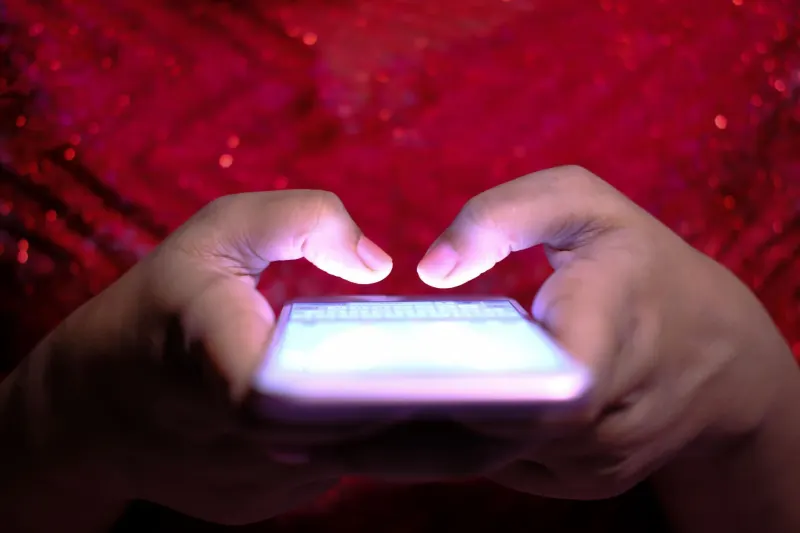
Whether you are texting, browsing social media, or playing a game, a phone screen that keeps darkening can be a major annoyance. Many users experience this frustrating issue even after turning off the auto-brightness feature in their settings. Fortunately, there are several possible explanations and practical steps you can take to troubleshoot and fix the screen dimming problem yourself on both iOS and Android devices.
Key takeaways
- Overheating from heavy tasks or external sources causes phones to scale back brightness to protect internal components.
- Apple's Attention Aware Features and Android equivalents use front-facing cameras to dim the screen when you look away.
- Power-saving settings, battery savers, and aggressive screen timeout intervals naturally trigger display dimming.
- Dirty proximity sensors or misaligned screen protectors can mistakenly cause your phone to darken during regular use.
Troubleshooting screen dimming on your iPhone
One of the most straightforward explanations for an iPhone screen darkening is that the device is overheating, either internally or externally. When a phone gets hot, it cuts back on energy and performance to maintain a stable internal temperature. Because the touchscreen is one of the most power-hungry features, brightness is scaled back as a precaution. Phones can overheat when running resource-intensive apps like gaming, using the camera, streaming HD video, updating software, or wirelessly charging. Moving the device to a cooler environment, removing protective cases, and closing demanding tasks can help it stabilize.
Another common culprit is enabled power-saving settings or a short screen timeout interval set to less than one minute. Users might also be unaware of Attention Aware Features, which dim the screen when you are not looking at the display. This setting can be disabled by navigating to Settings, selecting Accessibility, tapping Face ID & Attention, and turning off Attention Aware Features. Furthermore, the iPhone proximity sensor—which turns the screen off during calls—can cause dimming if it is dirty or obstructed by dust, oil, or a misaligned screen protector. Cleaning the top of the iPhone with a microfiber cloth often resolves this issue.
For owners of an iPhone 14 Pro or later, the Always-On Display feature dims the Lock Screen so it remains visible while locked. Apple notes that this display shuts off if placed face down, if CarPlay is initiated, if it is far from a paired Apple Watch, or when using Continuity Camera, Sleep Focus, or Low Power Mode. While enabled by default on newer models excluding the Air, it intentionally dims the screen to preserve battery life.
Navigating Android display and power settings
Android smartphones experience screen dimming for many of the same reasons as iPhones, though troubleshooting requires navigating different menus. Keeping the device cool and ensuring the proximity sensor remains unblocked by screen protectors are equally critical for Android users. Power-saving features and display options differ slightly across manufacturers. Samsung Galaxy devices utilize a feature called Keep screen on while viewing, which prevents dimming by using the front camera to detect your face when you look at the phone. This can be enabled by going to Settings, selecting Display, tapping Screen timeout, and toggling the switch.
Samsung Galaxy phones also offer power-saving controls that limit CPU speed to 70 percent, decrease brightness by 10 percent, or use an Always On Display function, all accessible via Settings under Battery and device care, then Battery, and Power saving. Google Pixel phones include similar options, alongside an Extra dim feature located in Quick Settings or under Settings and Accessibility for Pixel 9 and earlier models, which lowers brightness beyond the standard minimum. Users can also disable Battery Saver by navigating to Settings and Battery.
Knowing when professional repair is necessary
If you have exhausted all software and sensor troubleshooting steps and your phone screen still dims excessively, professional diagnosis may be required. Warning signs such as abnormal flickering, light surges, dark startup screens, bright or shadowy spots, ghosting, or permanent dimming usually indicate internal component damage that setting adjustments cannot fix. Repairing or replacing OLED and AMOLED screens found on newer iPhones, Samsung Galaxy S-series devices, and Google Pixels can be costly, sometimes making a complete phone replacement a more practical option.




Comments