
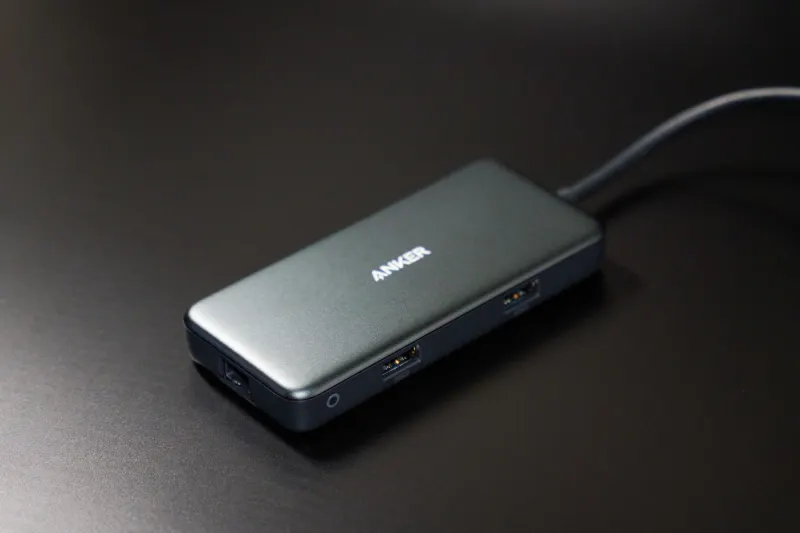
The Universal Serial Bus specification sits at the absolute center of modern computing, forcing users to navigate a complex ecosystem of ports, cables, and accessories. Consumers routinely invest heavily in high-performance external storage drives and USB hubs boasting rapid read and write speeds. However, the underlying ports on the host computer are equally critical to actual real-world performance. Ensuring that hardware performs up to its advertised spec requires specific diagnostic programs that can accurately measure data transfer rates.
For routine drive testing, open-source storage benchmarking applications serve as reliable proxies for determining whether USB connections run at their intended speeds. Windows users typically rely on CrystalDiskMark, while macOS users utilize AmorphousDiskMark. To perform an audit, a user connects a high-performance drive, launches the software, and selects the target hardware from the drop-down menu. Initiating a sequential read and write test provides a clear indication of how fast the USB port handles data transfers. Comparing these empirical rates against the manufacturer specifications reveals if a port or device is underperforming.
Key takeaways
- CrystalDiskMark and AmorphousDiskMark are popular open-source tools for checking storage drive read and write speeds.
- Windows users can install the Windows SDK and use the USBView tool to inspect device bus speeds.
- USB specifications use bits per second, whereas storage diagnostic tools typically present results in bytes per second.
- USB 3.2 Gen 2x2 and USB 4 connections are exclusively tied to the Type-C physical connector format.
Using Advanced Tools and Avoiding Bottlenecks
Windows users seeking a more granular inspection of connected hardware can install the Windows SDK and launch a built-in application called USBView. Located within the Program Files directory under Windows Kits, this utility displays active connections in a left-hand pane. Selecting a storage device and checking the Device Information header next to the Device Bus Speed entry reveals descriptive terminology rather than raw version numbers. For instance, a port might list a descriptor such as SuperSpeed 20 rather than a simple numerical generation.
Accurately testing USB throughput demands careful attention to testing methodology to eliminate hidden bottlenecks. Analysts recommend using an external drive and cable that match or exceed the maximum capabilities of the port under review. Thumb drives should generally be avoided because their performance tends to degrade rapidly during intensive benchmark testing. Furthermore, anyone testing an external USB hub should plug the device directly into the fastest available port on the host computer to isolate the hardware.
Translating Terminology and Understanding Speeds
Interpreting diagnostic outputs requires converting different units of measurement, as storage diagnostic utilities usually report data in bytes per second while the USB specification measures bits per second. Because one byte contains eight bits, users must multiply figures by eight to accurately compare real-world results against theoretical parameters. Real-world file transfers rarely achieve maximum theoretical limits, but a faster USB version should always outperform its predecessor. For example, a USB 3.2 Gen 2 connection may fall short of its 10 Gbps ceiling, yet it must easily surpass the 5 Gbps threshold associated with older USB 3.2 Gen 1 hardware.
Contemporary low-end consumer devices commonly default to USB 2.0, marketed as Hi-Speed with a 480 Mbps ceiling. The modern landscape also includes various iterations of USB 3.2, such as USB 3.2 Gen 1 SuperSpeed at 5 Gbps, USB 3.2 Gen 2 SuperSpeed+ at 10 Gbps, and USB 3.2 Gen 2x2 SuperSpeed 20 at 20 Gbps. Meanwhile, USB 4 architecture delivers speeds of 20 Gbps, 40 Gbps, and up to 80 Gbps via its second-generation specification. Intel's Thunderbolt protocol shares the identical Type-C physical connector and maps closely to USB4, with Thunderbolt 3 and 4 rated at 40 Gbps, while Thunderbolt 5 reaches 80 Gbps symmetrically or splits dynamically using Bandwidth Boost.






Comments