
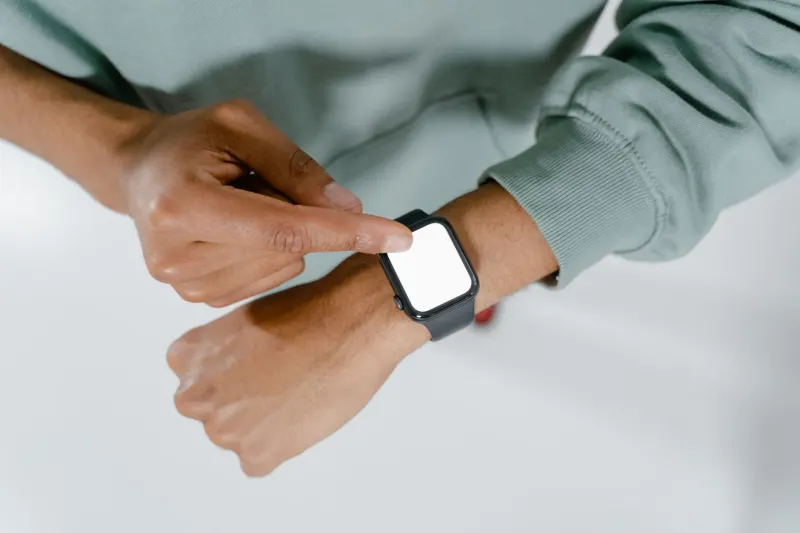
Getting through a full day of heavy usage on an Apple Watch can sometimes be a challenge, even with the latest hardware iterations. While newer models like the Apple Watch Series 12 are rated for 24 hours of endurance under standard testing conditions, real-world demands often drain the battery much faster. For power users needing constant tracking, hardware upgrades like the Apple Watch Ultra 4 offer larger batteries, but users can also utilize simple software adjustments to squeeze extra hours out of their current devices.
Key takeaways
- Low Power Mode disables features like Always On display, Wrist Flick, and background health measurements.
- Keeping your Apple Watch close to your paired iPhone allows it to piggyback on Bluetooth internet connections to save power.
- Disabling the Always On display can extend battery life by an impressive 10 to 12 hours.
- Users can configure Low Power Mode to activate automatically only during specific exercise sessions.
Utilizing Low Power Mode and connectivity adjustments
When running low on power, enabling Low Power Mode provides the most immediate relief. Users can turn this on by pressing the side button, tapping the battery percentage, and selecting the feature, or by navigating to Settings and Battery. This mode disables the Always On display, Wrist Flick, and Double Tap gestures while pausing background heart rate and blood oxygen measurements. Siri requests may take longer, and Live Activities update less frequently, but notifications and calls will continue to come through if the paired iPhone is nearby.
Connectivity choices also play a major role in energy conservation. Apple recommends keeping the Apple Watch near its paired iPhone so it can piggyback on the phone's internet connection over Bluetooth, which consumes less power than standalone cellular data. If Wi-Fi is available, using it instead of cellular data helps conserve energy. Users can also enable Airplane Mode when they do not need an internet connection, allowing them to still track workouts, play downloaded music or podcasts, and make purchases using Apple Pay.
Managing apps and display settings
Unnecessary background activity can drain a watch rapidly. When an app is installed on an iPhone, a companion version often installs automatically on the watch, potentially leading to unwanted notifications and background refreshes. Users can uninstall unneeded apps directly from the watch or turn off Background App Refresh via Settings, General, and Background App Refresh. Additionally, disabling unwanted app notifications through the Watch app on a paired iPhone reduces screen wake-ups and vibrations.
For more granular control, turning off the Always On display entirely can add 10 to 12 hours of battery life, according to testing by Macworld. This can be managed by going to Settings, Display and Brightness, and Always On. Users can also disable Wake on Wrist Raise or turn off gestures like Double Tap and Wrist Flick to stop the watch from lighting up accidentally. Finally, for fitness enthusiasts, watchOS 27 introduced Extended Workout options in the Workout app, allowing users to automatically enable Low Power Mode during specific exercise sessions to preserve battery while tracking physical activity.








Comments