
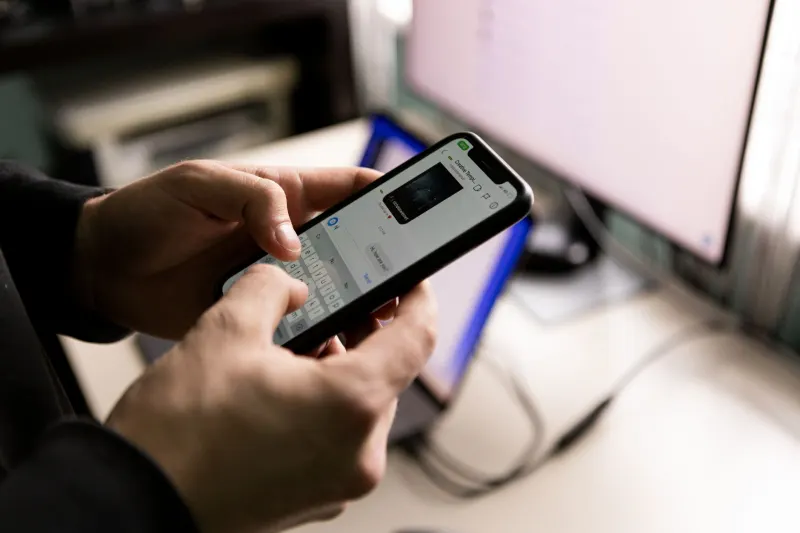
Folding smartphones are frequently marketed as ultimate productivity devices, with manufacturers highlighting split-screen multitasking as a major selling point. However, buyers do not need to spend close to $2,000 on a book-style foldable or flip phone to run two applications simultaneously. Traditional slab-style Android phones have offered robust multitasking capabilities for nearly a decade, allowing users to make the most of standard mobile displays without upgrading their hardware.
Key takeaways
- Split-screen multitasking has been built into Android since version 7.0 Nougat released in 2016.
- Users can access split screen by tapping an app icon in the recent apps switcher and selecting the split view option.
- Traditional slab phones typically support up to two apps at once, while larger foldables can handle three or more.
- Enabling the Force activities to be resizable toggle in Developer Options can sometimes force unsupported apps into split screen.
Activating split screen on traditional Android devices
Split-screen multitasking first appeared publicly with Android 7.0 Nougat back in 2016, though early discovery dates back to Android 6.0 Marshmallow with root access. Today, all modern Android smartphones come equipped with this capability out of the box, although the precise navigation steps vary slightly depending on the device manufacturer and software version. For most devices manufactured by Google, Samsung, and Motorola, users can launch the feature directly through the recent apps switcher.
To open this menu, users utilizing gesture navigation can swipe up from the very bottom of the screen and hold, while three-button navigation users can simply tap the Recents button. Once all active applications appear on screen, tapping an app icon reveals a menu with a Split Screen option. Selecting a second app places both applications side by side or stacked vertically. The dividing line in the middle can be dragged to adjust how much space each application occupies, and dragging the divider entirely off the screen exits the mode.
Floating windows and alternative multitasking tricks
While standard slab-style phones generally limit users to a maximum of two apps in split-screen view, larger foldables can accommodate three or more applications simultaneously. Beyond split screens, Android also supports floating windows for a different multitasking experience. A floating window hovers directly over the active application, letting users view and interact with two programs at once without splitting the display. Users can easily move or resize these windows by grabbing their corners and edges.
Different phone makers implement this feature under various names. Samsung refers to the capability as Pop-up view, while OnePlus and Oppo use the term Floating Windows, with ColorOS 17 even permitting aspect ratio adjustments for specific floating windows. Pixel devices running Android 17 provide the Bubbles feature, which minimizes floating apps into chat heads similar to Facebook Messenger for rapid access.
Troubleshooting unsupported apps and developer settings
Despite long-standing platform support, some applications still lack multiwindow compatibility. When this happens, the split-view option may appear greyed out or completely missing from the recent apps menu. Checking the Google Play Store for updates can sometimes resolve the issue if a newer app version introduces split-screen support.
For persistent compatibility hurdles, Android provides an advanced workaround hidden inside the Developer Options menu. Users can enable this secret menu by navigating to Settings, tapping About, locating the Build Number entry, and tapping it precisely seven times before entering their PIN. Once unlocked under the system settings, enabling the Force activities to be resizable toggle can force unsupported apps into split-screen mode, though results vary by device and proper app behavior is never guaranteed.




Comments