
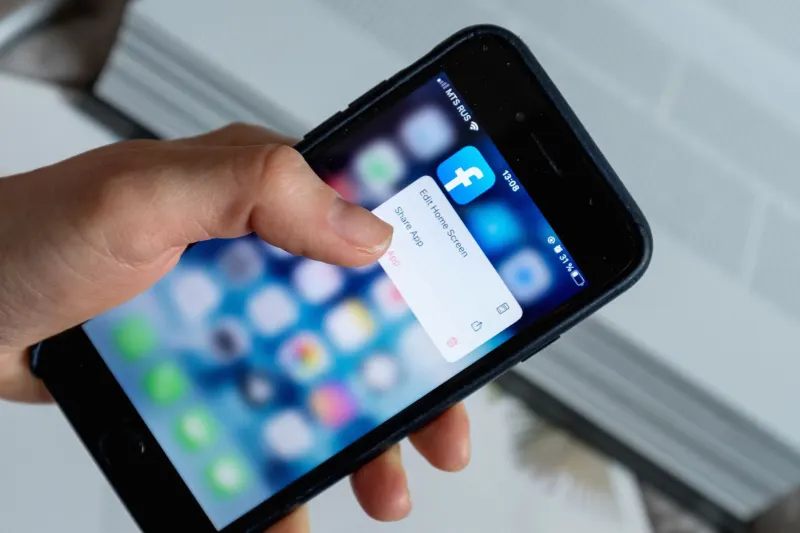
Cellular connectivity has evolved to be fast and reliable enough to rival home broadband, particularly with the widespread expansion of 5G. However, telecommunications providers are rarely as generous with their data allowances, leaving users vulnerable to hefty overage bills or painfully slow throttling speeds once monthly limits are exceeded. Data consumption occurs constantly through background app refreshes, automatic app updates, and routine cloud syncing rather than just active video streaming or file downloads. Apple includes a handful of powerful built-in configuration tools within iOS designed specifically to help users monitor and rein in their mobile data usage.
Key takeaways
- Users can view individual app data consumption by navigating to Settings and checking the Cellular menu.
- Enabling Low Data Mode restricts automatic updates and background tasks when away from Wi-Fi.
- Disabling Connectivity Assist prevents iPhones from secretly switching to cellular data when Wi-Fi gets weak.
- Adjusting settings in third-party apps like WhatsApp and Instagram further limits unnecessary data drain.
Tracking and restricting individual app usage
Identifying which applications consume the most bandwidth is the first step toward effective data management. By heading to Settings, selecting Cellular, scrolling down to the Cellular Data section, and tapping on Show All, users can view a detailed list of every installed app and its specific data usage. This list can be conveniently sorted by name or usage volume to quickly spot bandwidth hogs.
Tapping the toggle switch next to any specific application will immediately prevent it from utilizing mobile data. Once disabled, the app will cease updating its content in the background when disconnected from Wi-Fi and may also stop delivering push notifications. The next time the application is launched manually, it will display an alert notifying the user that mobile data access has been turned off, offering a direct option to re-enable it if desired. For users who rely primarily on Wi-Fi networks, turning off cellular connectivity entirely via Settings and Cellular can drastically reduce data drain and preserve battery life.
Utilizing Low Data Mode and managing background activity
iOS also features a dedicated toggle designed to globally restrict data consumption without requiring users to shut off cellular access completely. Navigating to Cellular Data Options within the Cellular settings menu and selecting Low Data Mode overrides the default Standard setting, which normally permits background tasks and automatic updates over cellular networks. Activating this mode immediately restricts such resource-heavy background processes.
Being connected to Wi-Fi does not entirely guarantee that an iPhone will completely avoid consuming mobile data. Users can navigate to Settings, select Wi-Fi, scroll down, and turn off the Connectivity Assist toggle. Prior to iOS 27, this capability was known as Wi-Fi Assist and resided directly under the Cellular menu. The feature is designed to maintain uninterrupted internet connectivity by seamlessly switching to mobile data whenever a Wi-Fi signal becomes too weak or congested. Disabling this utility helps eliminate hidden, unexpected mobile data consumption.
Additional steps for media streaming and third-party apps
Beyond core system preferences, altering automatic update behaviors and app settings yields substantial data savings. Navigating to Settings, choosing Apps, selecting App Store, and turning off the Automatic Downloads toggle prevents unexpected cellular activity. Similarly, opening the main Settings menu, tapping the user profile name, navigating to iCloud and then iCloud Backup, and ensuring the Back Up Over Mobile Data toggle remains unchecked prevents background cloud syncing over cellular connections.
Media streaming remains a primary culprit for rapid data depletion. Apple Music users can adjust their settings by going to Settings, selecting Apps, heading to Music, opening Audio Quality, and adjusting Data Streaming preferences, as lossless audio consumes massive amounts of bandwidth. Alternative services like Spotify, Tidal, and YouTube Music similarly offer quality reduction options, while capping YouTube video streaming at 720p helps curb consumption.
Navigation apps offer offline alternatives, as both Apple Maps and Google Maps allow users to download regional maps for offline use. Finally, third-party applications provide their own granular controls. WhatsApp users can tap their profile picture, open Storage and data, and restrict media auto-download parameters to Wi-Fi only, while Instagram fans can enable a Use less mobile data toggle located within the app settings under Media quality.








Comments