
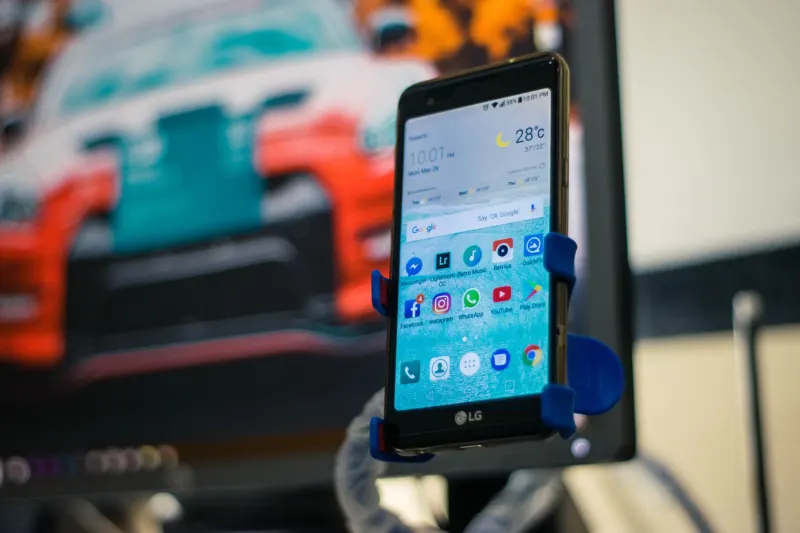
Drivers relying on wireless Android Auto often notice a significant drop in battery life and a rise in device temperature during commutes. An hour of active use can sap up to 16 percent of a smartphone's battery when features like navigation and music streaming run simultaneously. Because the system relies on keeping both Bluetooth and Wi-Fi active for the entire duration of a trip, the hardware works hard, drawing continuous power and generating substantial heat.
The problem is often compounded when users place their phones on wireless charging pads inside vehicles. Google previously noted that thermal management is the primary reason behind capping devices like the Pixel 10 and Pixel 10 Pro at 15W wireless charging. When a phone sits on a wireless pad exposed to direct sunlight on a dashboard while running demanding navigation apps, thermal energy builds up rapidly. Overheated phones frequently throttle processor performance, dim screens, or partially disable mobile data connections such as 5G to protect internal components.
Key takeaways
- Wireless Android Auto can drain up to 16 percent of a phone battery per hour of use.
- Running navigation and music while charging generates excess heat and can cause phones to throttle performance.
- Adjusting network settings from 5G to LTE preferred significantly reduces battery consumption.
- Using a vent mount and avoiding direct sunlight helps keep devices cool during long drives.
Effective Adjustments for Better Battery Life
Several software adjustments can reduce the resource strain on your phone while using Android Auto. Switching your mobile network preference from 5G to LTE yields some of the biggest improvements in battery longevity, as certain cellular networks force devices to maintain dual connections. Samsung Galaxy owners can adjust this by navigating to Settings, Connections, Mobile networks, Network mode, and selecting LTE preferred, while other Android devices have similar options under preferred network types.
Reducing graphical strain inside navigation apps also helps lower device temperatures. Drivers can open Google Maps on the vehicle display while parked, access settings, and disable 3D buildings. Furthermore, downloading offline maps before setting out reduces mobile data usage and background processor strain, making it ideal for predictable highway routes. Disabling background location services like Wi-Fi and Bluetooth scanning under location settings removes additional background jobs, though primary Bluetooth and Wi-Fi connections must remain active for wireless Android Auto to function.
Hardware Tweaks and Wired Alternatives
Physical placement inside the vehicle plays a critical role in managing thermal energy. Utilizing an air-conditioning vent mount instead of a standard dashboard cradle keeps the phone exposed to cool airflow rather than direct sunlight. For longer journeys, plugging the phone directly into a USB cable generally maintains charge and keeps the device cooler than wireless charging pads, although vehicle USB port speeds vary.
If you prefer to abandon the wireless connection entirely for a wired setup, the setting can be accessed through hidden developer menus. Google removed the wireless Android Auto switch from standard app settings in version 8.7, but the option remains available within developer settings, allowing users to disable wireless functionality and connect via a physical cable.







Comments