
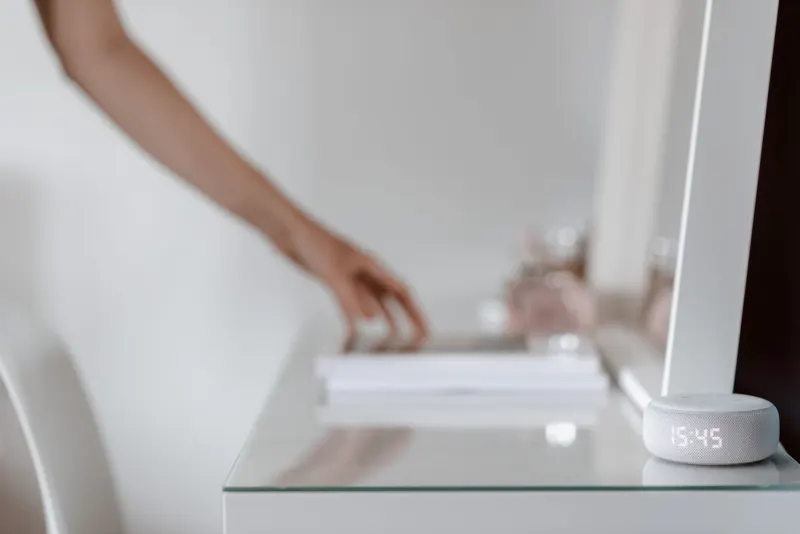
Apple has expanded the capabilities of its smart speaker lineup with the introduction of Sound Glow, a fresh software feature that transforms the LED surface on top of supported HomePods into a dynamic, colorful light show. Historically, the basic array of lights on the top surface served limited functions, primarily glowing when Siri was actively listening or when audio was playing. Following the debut of the HomePod mini 2, Apple has rolled out HomePod Software 27.2, making the listening experience significantly more visual for owners of compatible smart speakers.
When activated, Sound Glow automatically analyzes the music being played through the speaker. It pulls color palettes directly from the album art and pulses the LEDs in real time to match the beat of the song. For instance, playing Taylor Swift's The Life of a Showgirl creates a predominantly green and orange display, whereas Miley Cyrus's Endless Summer Vacation triggers blue animations. According to Apple, the software animation responds dynamically to the bass and treble of the track, ensuring that different songs from the same record produce unique visual patterns. The feature is not restricted strictly to music either, as it also supports podcasts and Apple's built-in ambient sounds, such as the Rain soundscape which features a gentle pitter-patter visual effect. Standard white lighting remains active for any songs that lack artwork or videos, functioning automatically without requiring ongoing user adjustments.
Key takeaways
- Sound Glow pulses the top LEDs of HomePods in sync with music beats and album art colors.
- The feature requires HomePod Software 27.2 and a compatible, paired Apple Intelligence device.
- It works on HomePod 2 and original HomePod mini units, but excludes the 2018 original HomePod.
- Users can easily toggle the feature on or off individually for each speaker via the Home app.
Compatibility and hardware requirements
While the feature arrives alongside the launch of the HomePod mini 2, it is not exclusive to the newest hardware. Sound Glow is natively supported by the original HomePod mini as well as the larger HomePod 2 model. However, notable hardware limitations do apply. The original full-sized HomePod released in 2018 cannot run the feature, even though it remains capable of updating to HomePod Software 27.2. Furthermore, operating Sound Glow requires an Apple Intelligence-enabled device paired with the speakers. Compatible controller hardware includes an iPhone 15 Pro or newer, an M1 Mac or newer, select recent iPads, or an Apple TV running tvOS 27.
Practical considerations also apply to the visual performance of the feature. Apple notes that the LEDs on top of the HomePods are not bright enough to illuminate an entire living room unless the environment is completely dark. Users hoping for a room-filling light display may find the effect subtle, as it is designed to accent the speaker itself rather than act as ambient room lighting.
How to set up and enable Sound Glow
Enabling Sound Glow requires verifying that all participating devices are running the correct software versions. Users must ensure their smart speakers are updated to HomePod Software 27.2 or later, and that their controlling iPhone or iPad runs iOS 27.2. Although HomePods typically update automatically over time, verification is possible through the Home app by tapping the three-dot button, navigating to Home Settings, and checking the Software Update menu. Even newly purchased HomePod mini 2 units may require this manual update check if they shipped with an older operating system version.
Once the software environment is verified, enabling the feature requires navigating back to the main screen of the Home app. Tapping the specific HomePod and opening its settings reveals the dedicated Sound Glow toggle after scrolling down. Users must enable this toggle individually for every separate HomePod they own. Playback can then be initiated via Siri or AirPlay to confirm operation. Disabling the feature follows the exact same process through the Home app menu by flipping the toggle back to the off position.



Comments