
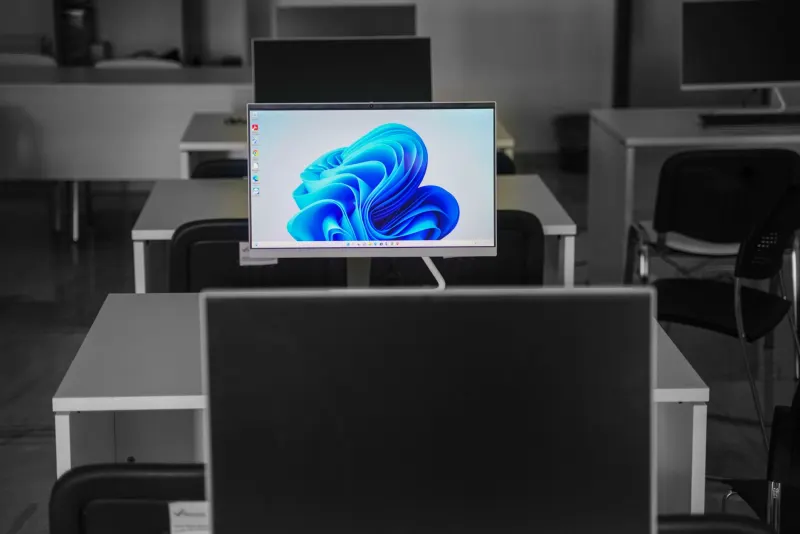
Shopping for a new computer monitor brings a wave of excitement as you scroll through specifications, watch review videos, and imagine how the screen will transform your workspace. However, letting emotions dictate the purchase often leads to costly mistakes and a display that fails to meet your daily needs. Finding the right screen requires evaluating how you intend to use it, whether that means prioritizing a high refresh rate for gaming or sticking with a standard 60Hz panel for office productivity. To ensure you end up with a setup that serves you well, you must navigate several common pitfalls that catch buyers off guard.
Key takeaways
- Treating a monitor like a TV causes eye strain because desktop screens sit much closer to your eyes than living room displays.
- Older ports like HDMI 1.4 only support 4K at 30Hz, meaning your PC hardware must match your monitor specifications.
- Panel types vary significantly, with TN panels offering speed, VA providing strong contrast, IPS acting as a balanced middle ground, and OLED delivering superior visuals with burn-in risks.
- Fake HDR marketing labels often mean a monitor only accepts an HDR signal without having the necessary brightness to display it properly.
Treating a desktop monitor like a television
While televisions and computer monitors look similar at a glance, they function as entirely different devices built for separate use cases. Shopping for a monitor as if it were a television can quickly backfire because of how close you sit to your desk. A living room television usually sits across the room, whereas your desk monitor sits right in front of your face. Putting a screen that is too large or too small too close to your eyes causes severe eye strain and makes daily work far more difficult.
A reliable rule of thumb matches your screen size directly to your viewing distance. If your eyes sit roughly 24 to 36 inches away, a 27-inch monitor represents the ideal choice. When your distance ranges from 28 to 42 inches, a 32-inch monitor works exceptionally well. In contrast, a 32-inch television requires a viewing distance of about 52 inches. Applying TV logic to your desktop fails entirely, which explains why curved TVs ultimately failed while curved gaming monitors thrived. Furthermore, using a television as a monitor introduces blurry text up close due to lower pixel density.
Ignoring hardware limitations and port compatibility
Your monitor is only one part of your computer system, and your existing PC hardware might not support cutting-edge specs. Before purchasing an advanced 6K HDR10+ display, you need to check whether your older devices are compatible with those astounding specifications. Not every laptop can push 4K resolution at 60Hz through every port, meaning a high-end monitor could face severe limitations on older hardware. Older HDMI connections like HDMI 1.4 top out at 4K at 30Hz, whereas HDMI 2.0 and DisplayPort 1.2 support 4K at 60Hz. Even popular USB-C ports cannot always support video output unless the port specifically supports DisplayPort or functions as a Thunderbolt port.
Beyond technical caps, you should evaluate whether you actually need ultra-high resolutions. Photo and video editors benefit greatly from the extra pixels found in 4K or 5K screens, but writing, web browsing, and handling spreadsheets only require a standard 1080p display. You must also verify that your monitor includes the correct port selection and that each individual port supports your specific connectivity needs before making a purchase.
Failing to match panel types and ergonomics
Monitors utilize different panel technologies, including IPS, TN, VA, and OLED, with the first three relying on LCD technology while OLED stands apart. TN panels deliver speed and affordability for gaming, but suffer from poor viewing angles where colors and contrast shift if viewed off-center. VA panels excel at movie and media consumption through deep blacks and strong contrast, though slower pixel response times make them prone to ghosting. IPS serves as a safe middle ground with accurate colors, wide viewing angles, and good response times, despite weaker contrast and potential backlight bleed. OLED outperforms them all in contrast, color, motion, and viewing angles, but carries a higher price tag and a risk of burn-in over prolonged use.
In addition to panel tech, physical comfort plays a major role in your computing experience. When shopping, look for monitors that feature tilt, swivel, height, and pivot adjustments, or support for VESA mounting patterns. VESA mounting lets you attach an arm to easily reposition the screen whenever necessary. Ignoring ergonomics and desk space can leave you with a shiny new monitor that either refuses to fit your physical workspace or cannot be positioned in a comfortable way.




Comments