
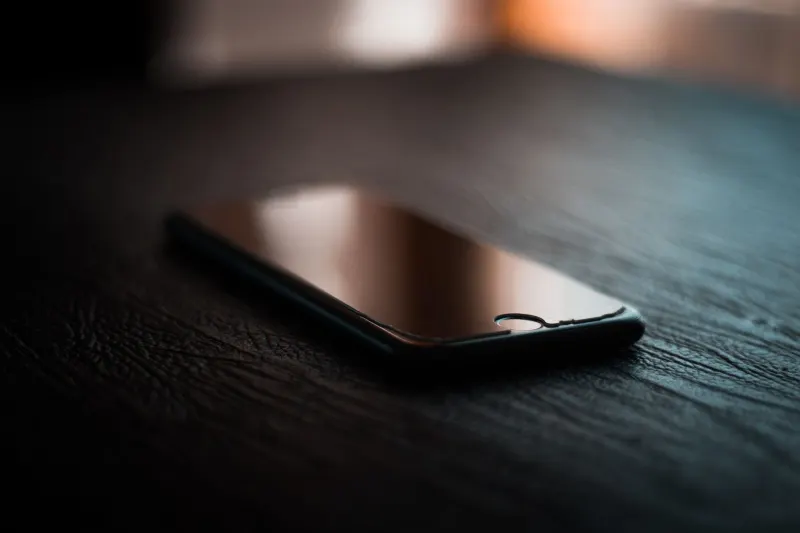
Most modern iPhones contain a powerful sensor working silently in the background that many owners never realize is there. Since Apple introduced the iPhone 6 and 6 Plus back in 2014, nearly every iteration of the device has included a built-in barometer. The sole notable exception from that era was the first-generation iPhone SE, which left out the hardware component. Apple originally integrated the barometer to help determine relative elevation changes using current barometric pressure.
Atmospheric pressure is essentially the physical force exerted by the air resting above you. Because air molecules possess mass, a greater column of air situated above a person results in higher pressure. As individuals travel higher into the atmosphere, the pressure drops, allowing the iPhone to translate those readings into an approximate elevation measurement. However, barometric pressure shifts not only with physical altitude changes, but also with changing weather patterns. Because a falling pressure reading could indicate either scrambling up a steep mountain or looming storm clouds, the sensor alone cannot distinguish between the two without additional context from GPS altitude and local weather stations.
Key takeaways
- Apple integrated barometers into most iPhones starting with the iPhone 6 and 6 Plus in 2014.
- The built-in sensor detects elevation changes by measuring atmospheric pressure.
- Apple does not provide a native standalone barometer app for iOS users.
- Third-party apps like Barometer & Altimeter & Thermo can read the on-device sensor data.
Why Apple leaves out a dedicated barometer app
Apple never intended for the barometer to serve as a standalone consumer-facing feature with its own dedicated app on the home screen. Instead, the sensor functions as a vital contributing component that fills data gaps left by other hardware. For instance, motion activity data, including tracked elevation changes and stair climbing metrics, feeds directly into the iOS Health app to enhance step counting. Furthermore, the barometer provides essential measurements that other software relies on to track elevation changes and assist with precise location determination.
Developers have access to this pressure and altitude information through Apple's Core Motion framework. This grants external creators the ability to build pressure data directly into dedicated fitness, hiking, and outdoor tracking applications where the hardware can continue working seamlessly in the background. Interestingly, even Apple's own native Weather app bypasses the internal device barometer entirely, pulling barometric pressure information from external weather data sources instead.
How to check your iPhone pressure readings
To view real-time atmospheric measurements directly from the hardware on devices such as an iPhone 18, users must download a third-party application designed to read the on-device sensor rather than pulling data from outside networks. App store descriptions typically list their data sources clearly, allowing users to verify whether the software utilizes the built-in hardware.
Applications like Barometer & Altimeter & Thermo explicitly state in their description box that they leverage the iPhone's built-in barometer alongside GPS and weather station data for proper calibration. Another viable choice is My Altitude, which defaults to using on-device sensors when available and holds a strong 4.8 overall rating from tens of thousands of user reviews. Both options are free to download while featuring advertisements and optional in-app purchases. Once installed, users can test the sensor by noting pressure changes before and after climbing a flight of stairs, taking care not to confuse shifts caused by local weather systems with actual physical movement in elevation.



Comments