
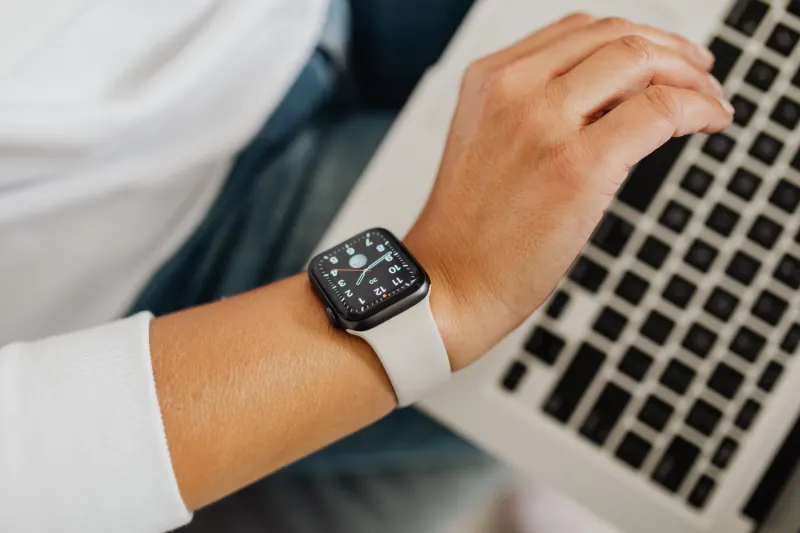
Your Apple Watch can handle directions, texts, lights, and naps with just a little setup. Whether you are stuck outside an unfamiliar venue late at night or trying to coordinate your daily commute, taking a few minutes to configure custom shortcuts on your iPhone can eliminate repetitive tapping on a tiny wrist display. Shortcuts are built using the native Shortcuts app on your iPhone. Once created, they appear on your wrist after you toggle the Show on Apple Watch switch within each shortcut's settings. Users can run these actions directly from the Shortcuts app, a watch face complication, a Smart Stack widget, or the physical Action button on an Apple Watch Ultra. Furthermore, users with an iPhone 15 Pro or newer can describe what they want in plain English to let Apple Intelligence build the shortcut.
Key takeaways
- Shortcuts can be configured on an iPhone and accessed directly on an Apple Watch via complications, Smart Stack widgets, or the Action button.
- The Get Me Home shortcut eliminates dictating addresses by pulling up navigation routes to a saved home location with a single tap.
- Users can automate evening routines, such as turning off downstairs lights, by integrating Apple Home scenes with wrist shortcuts.
- Driving distractions can be reduced by automatically disabling wrist raise illumination and enabling Theater Mode when connected to CarPlay.
Navigating home and communicating arrival times
Finding your way back from an unfamiliar location can be tedious when you are forced to dictate a full address into a miniature screen. The Get Me Home shortcut resolves this by utilizing the Open Directions action in the iPhone Shortcuts app. By assigning a destination field to a saved home address, choosing a preferred transit method like walking or driving, and enabling the Show on Apple Watch toggle, you can launch navigation directly from a watch face complication such as the modular layout. iOS updates further support multi-stop driving directions if your route involves stops like a school pickup.
Another common daily friction point is sending arrival updates to family members. The Get Travel Time action calculates the duration of your journey home from your current location and combines it with a text action to send an automated message. You can trigger this manually with a single tap or set up an automation that runs automatically when leaving a saved location such as your workplace.
Managing home automation and quiet rest periods
Arriving home late when other household members are sleeping makes traditional voice commands impractical. By pairing Apple Home scenes with a wrist shortcut, you can execute complex routines silently. Creating a Good Night scene in the Home app allows you to shut down downstairs lights and adjust thermostats simultaneously, which is then mapped to a Control Home action on your watch face. A complementary morning scene can reverse these actions or trigger automatically when you stop your morning alarm.
Similarly, midday rest can be optimized by bundling a nap timer with notification management. A dedicated nap shortcut utilizes the Start Timer action alongside a Set Focus action configured for Do Not Disturb, ensuring that group chats do not buzz your wrist while you rest. The same methodology can be applied to workouts, where starting a fitness session automatically silences your phone and watch.
Reducing distractions while driving
Bright wrist displays can be distracting during night driving. You can prevent your Apple Watch from lighting up whenever you turn the steering wheel by building automated shortcuts tied to CarPlay. By incorporating the Set Wake on Wrist Raise and Set Theater Mode actions, your watch screen remains dark until you explicitly tap it or press a button. A CarPlay connection trigger executes the dimming action immediately upon connecting, while a secondary duplicate shortcut restores normal display settings upon disconnection.



Comments