
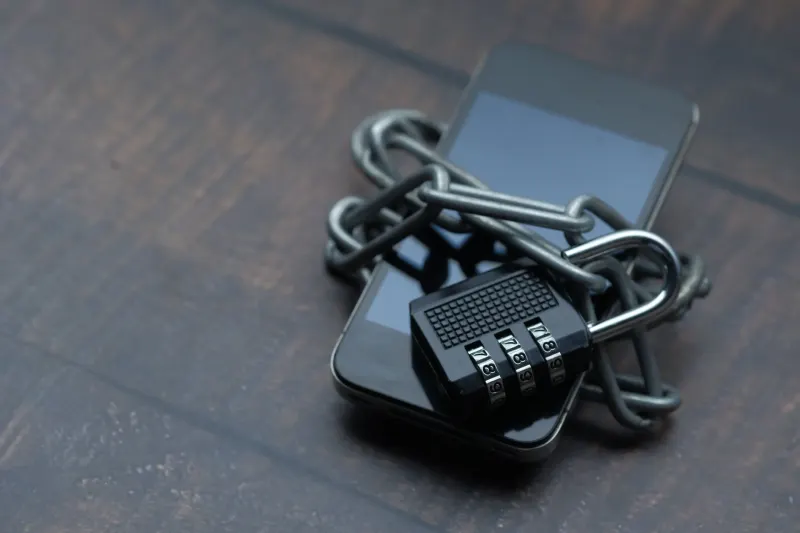
While Apple builds numerous layers of protection directly into iOS, some vital security features require manual configuration to work effectively. Out of the box, iPhones leave certain controls enabled that can expose sensitive information if the device falls into the wrong hands or is temporarily borrowed by a snoop. Taking a few moments to properly configure your device settings can make a significant difference in safeguarding your personal data, preventing unauthorized access, and blocking intrusive ad tracking.
Key takeaways
- Lock Screen settings can be restricted to hide notification previews and block Control Center access until authenticated.
- Safety Check and Privacy & Security menus let users quickly review and revoke unnecessary app permissions.
- iOS allows users to lock specific apps behind Face ID or Touch ID, or hide them entirely in a secure folder.
- Stolen Device Protection adds an extra layer of defense when your iPhone is away from familiar places.
Limit lock screen exposure and run safety checks
By default, an iPhone Lock Screen reveals a surprising amount of information and functionality even before a passcode is entered. Anyone with physical access can potentially trigger Control Center or activate Siri, which can be exploited to put a lost iPhone into airplane mode. To secure this, you can hide notification previews by going to Settings, Notifications, Show Previews, and selecting When Unlocked. Furthermore, heading into Face ID & Passcode lets you restrict access to features like Control Center while locked.
App permissions are another common vulnerability, as users often tap allow on endless prompts without thinking. Apple includes a tool called Safety Check under Privacy & Security to help audit these permissions. By managing sharing and access, you can instantly revoke location or photo privileges from apps that do not require them, or change location settings from Always to While Using. Enabling App Privacy Report will also show you how often applications access sensitive data like your microphone or location.
Lock sensitive apps and block tracking
Handing an unlocked phone to a friend to show a video can inadvertently give them access to private messages or notes. You can prevent this by pressing and holding an app icon on the home screen, then choosing to require Face ID or Touch ID for access. For complete privacy, you can also hide apps entirely so they vanish from the home screen and move to a secure folder in the App Library that requires authentication to open.
To reduce data collection by advertisers, you can stop apps from tracking your activity across the web. Instead of managing pop-ups individually, navigate to Privacy & Security, tap Tracking, and turn off Allow Apps to Request to Track. Users can also disable Personalized Ads under Apple Advertising to stop sharing search history with Apple's platform.
Protect against device theft
Criminals have been known to watch users enter their passcodes in public, steal the device, and use that passcode to lock owners out of accounts or change Apple Account passwords. Stolen Device Protection counters this tactic by monitoring when the iPhone is away from familiar locations like home or work. When activated in the Face ID & Passcode settings menu, it enforces biometric authentication and a mandatory one-hour delay for sensitive actions, giving you crucial time to report a lost or stolen device.


Comments