
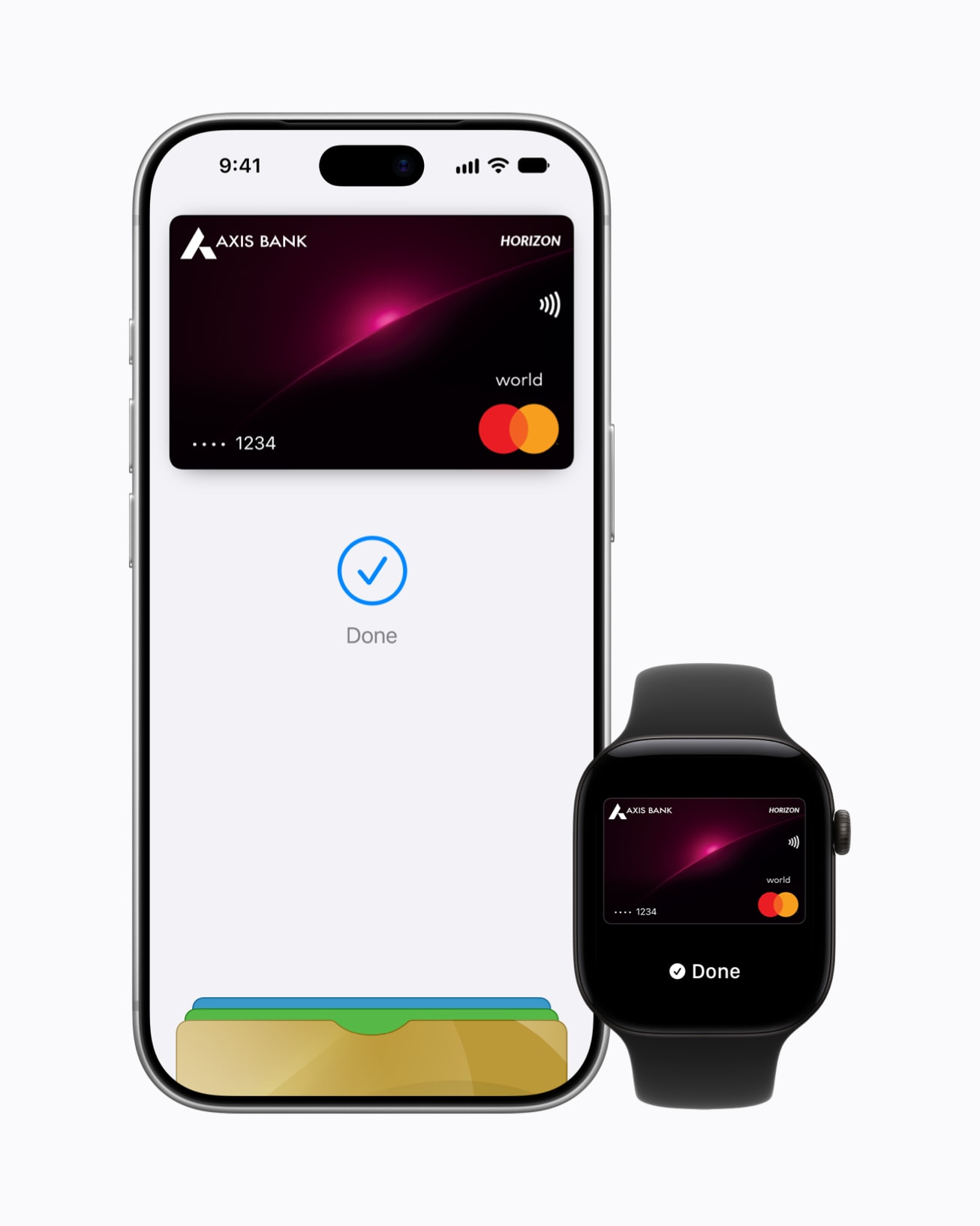
Apple has officially launched Apple Pay in India, bringing contactless payments to compatible iPhone, iPad and Apple Watch devices. With Apple Pay, users can make payments at supported contactless payment terminals, as well as in participating apps and websites.
At launch, Apple Pay supports eligible Axis Bank Visa and Mastercard credit cards. Apple says additional banks and cards will be added in the future. Users can check whether their card is eligible before adding it to Apple Wallet.
HOW TO SET UP APPLE PAY ON IPHONE
Before getting started, make sure your iPhone is running a supported version of iOS and that you have an eligible payment card.
Step 1: Open the Wallet app on your iPhone.
Step 2: Tap the “+” button in the top-right corner.
Step 3: Select the option to add a Credit or Debit Card.
Step 4: Scan your physical card using the iPhone camera or enter the card details manually.
Step 5: Follow the on-screen instructions to complete the card setup.
Step 6: Your card issuer may ask you to complete an additional verification step. This can include receiving a verification message, answering security questions or confirming the card through the issuer’s app.
Step 7: Once verification is complete, the card will be added to Apple Wallet and can be used with Apple Pay.
Apple also allows users to add an eligible card through the supported bank’s app when the “Add to Apple Wallet” option is available.
HOW TO PAY WITH IPHONE AT A STORE
Once your card has been added to Apple Wallet, you can use your iPhone at stores that accept contactless payments.
Step 1: Look for the contactless payment symbol at the payment terminal.
Step 2: On an iPhone with Face ID, double-click the side button. On an iPhone with Touch ID, double-click the Home button.
Step 3: Your default Apple Pay card will appear on the screen.
Step 4: Authenticate the payment using Face ID, Touch ID or your iPhone passcode.
Step 5: Hold the top portion of your iPhone near the contactless payment reader.
Step 6: Keep the iPhone near the reader until a checkmark or “Done” appears on the screen.
The payment will then be processed through the selected card.
HOW TO ADD APPLE PAY TO APPLE WATCH
Apple Pay can also be set up on a compatible Apple Watch paired with an iPhone.
Step 1: Open the Apple Watch app on your iPhone.
Step 2: Tap “My Watch.”
Step 3: Select “Wallet & Apple Pay.”
Step 4: Tap “Add Card.”
Step 5: Select Credit or Debit Card and follow the instructions.
Step 6: Add your eligible card by scanning it or entering its details.
Step 7: Complete any verification requested by the card issuer.
Once verification is complete, the card will be available in the Wallet app on the Apple Watch.
Cards can also be added directly from the Wallet app on Apple Watch by opening Wallet, tapping the More Options button and selecting “Add Card.”
HOW TO PAY WITH APPLE WATCH
After adding the card, Apple Watch can be used for contactless payments without taking the iPhone out of your pocket.
Step 1: At a store, look for a contactless payment terminal.
Step 2: Double-click the side button on your Apple Watch.
Step 3: If you have more than one card, scroll to select the card you want to use.
Step 4: Hold the display of your Apple Watch near the contactless payment reader.
Step 5: Wait for the gentle tap and beep confirming that the payment information has been sent.
The payment will then be completed using the selected card.
APPLE PAY ON IPAD AND OTHER DEVICES
Apple Pay is also available on supported iPad models for payments in participating apps and websites. Mac support is coming soon.
For online or in-app purchases, users can select the Apple Pay button at checkout, review their payment information and authenticate the transaction using the device’s available security method.
SECURITY AND PRIVACY
Apple says the actual card number is not stored on Apple servers and is not shared with merchants. Instead, Apple Pay uses a unique Device Account Number along with a transaction-specific security code to process payments.
Apple Pay does not replace UPI in India. At launch, it works with eligible supported payment cards, allowing users to make contactless payments through their Apple devices.
At launch, Apple Pay supports eligible Axis Bank Visa and Mastercard credit cards. Apple’s supported-bank list will be updated as additional banks are added in the future.



Comments