
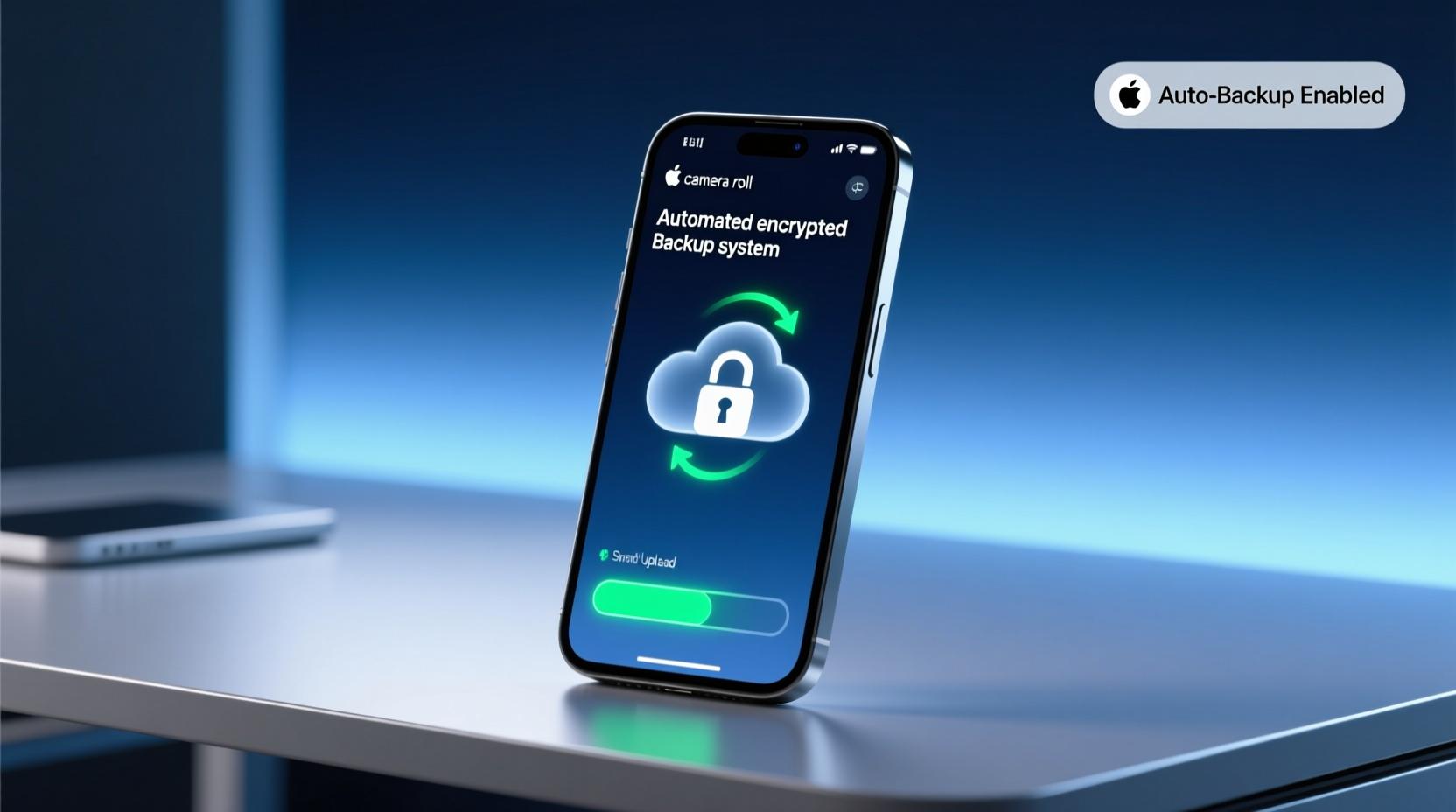
Signal has introduced encrypted on-device backups for iPhone and iPad with the release of Signal iOS version 8.30. The update gives users another way to preserve their Signal messages and move their chat history between supported devices.
Signal’s new on-device backup system creates an end-to-end encrypted copy of Signal data that users can store in a location of their choice. Signal says the feature is now available on iOS and Signal Desktop, while Android’s existing on-device backup system has also been revamped.
HOW TO ENABLE ON-DEVICE BACKUPS ON IPHONE AND IPAD
Step 1: Update Signal to the latest available version from the App Store.
Step 2: Open the Signal app.
Step 3: Tap your profile picture to open Signal Settings.
Step 4: Open “Backups.”
Step 5: Select the option for on-device backups and follow the setup instructions shown by Signal.
Step 6: Choose where you want the encrypted backup to be stored.
Step 7: Signal will generate a recovery key for the backup. Save this key somewhere secure.
Step 8: Confirm that you have saved the recovery key and complete the backup setup.
The recovery key is important because it is required to restore the encrypted backup. Users should not share this key with anyone.
HOW TO RESTORE AN ON-DEVICE BACKUP
When restoring Signal using an on-device backup, users need both the encrypted backup data and the recovery key.
Step 1: Install or open Signal on the supported device.
Step 2: During the restoration process, select the option to restore from an on-device backup.
Step 3: Select the backup location when prompted.
Step 4: Enter the recovery key.
Step 5: Follow the instructions displayed by Signal to complete the restoration.
Signal’s on-device backups are designed for users who want to control where their encrypted backup files are stored, including locations such as an external drive or personal storage system.
SIGNAL SECURE BACKUPS
Alongside on-device backups, Signal also offers Secure Backups as an optional backup solution.
Signal Secure Backups automatically preserve a user’s message history in an end-to-end encrypted backup archive. The backup is protected by a unique 64-character recovery key that is never shared with Signal.
HOW TO ENABLE SIGNAL SECURE BACKUPS
Step 1: Open Signal.
Step 2: Go to Signal Settings > Backups.
Step 3: Tap “Setup.”
Step 4: Tap “Enable Backups.”
Step 5: Tap “Next.”
Step 6: Carefully save the 64-character recovery key in a secure location.
Step 7: Confirm that you have saved the recovery key.
Step 8: Tap “Continue” and select the available backup plan.
Step 9: Complete the setup.
The free Secure Backup plan includes text messages and the last 45 days of media. Signal also offers a paid plan that can store up to 100GB of media.
WHY THE RECOVERY KEY IS IMPORTANT
Signal does not have access to the recovery key. Because the backup is end-to-end encrypted, the recovery key is required to decrypt and restore the backup.
If the recovery key is lost, Signal cannot reset or recover it for the user.
ON-DEVICE BACKUPS VS SECURE BACKUPS
On-device backups are designed for users who want to maintain an encrypted backup under their own control and choose the storage location.
Signal Secure Backups, meanwhile, provide an optional encrypted backup archive that can be used to restore messages when replacing a device, reinstalling Signal or moving between supported platforms.
Signal says Secure Backups and on-device backups can now be created and restored across supported operating systems, including Android, iOS, Linux, macOS and Windows, although the exact restoration options depend on the device and backup type.
WHAT DATA IS BACKED UP?
Signal Secure Backups include text messages and the last 45 days of media such as photos, files and attachments under the free plan. A paid plan can store up to 100GB of media.
Signal also notes that disappearing messages that are scheduled to disappear within 24 hours are excluded from backups.
PRIVACY AND SECURITY
Signal says its backup systems are designed around end-to-end encryption. On-device backups allow users to choose where their encrypted backup is stored, while Secure Backups are protected by the user's recovery key.
The company says the recovery key is never shared with Signal, meaning Signal cannot decrypt or restore a Secure Backup without the user's key.
With the latest iOS update, Signal is giving iPhone and iPad users more options to preserve their conversations while maintaining the privacy and encryption principles the messaging platform is known for.





Comments