
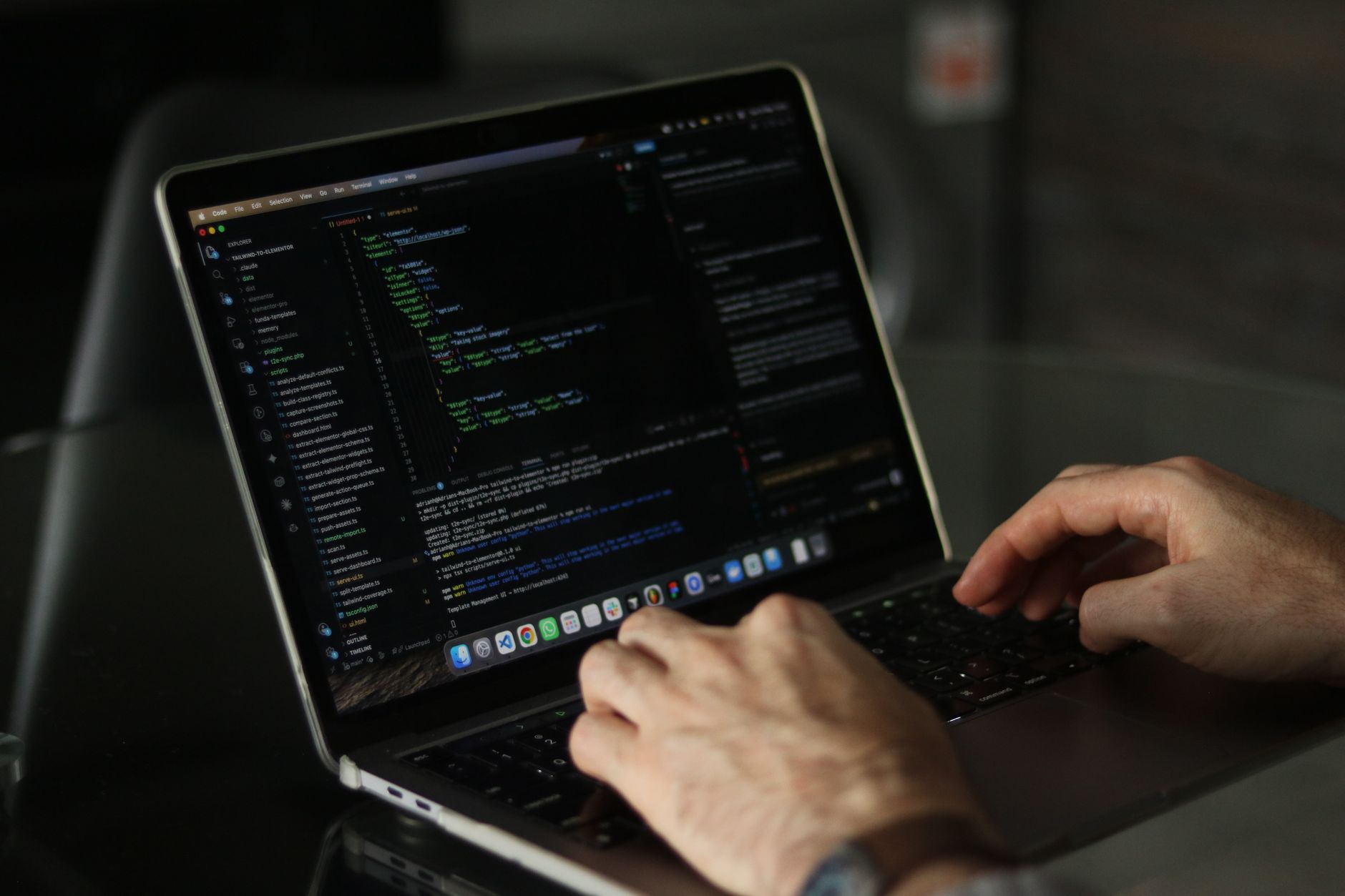
Your personal computer is constantly executing tasks, even after you close every open application window on your desktop. The operating system regularly checks for updates and maintains system operations under the hood, while various third-party utilities continue running quietly in the background. While these hidden operations usually serve a valid purpose, certain programs consume far more processing power or memory than expected. This siphons valuable hardware resources away from applications you actively want to use.
Getting into the habit of monitoring your PC's background processes provides a baseline of what is supposed to run, making it much easier to spot unusual activity. You do not need to watch the numbers constantly, but understanding how to check resource consumption helps isolate processes that cause sluggish performance. The primary tool for this job is the built-in Task Manager, accessible quickly via the keyboard shortcut Ctrl + Shift + Esc or by right-clicking the Start button.
Inside the Processes tab of Task Manager, running tasks are grouped neatly into active apps, background processes, and Windows system processes. Sorting by columns allows users to instantly identify which programs are heavy consumers of CPU, memory, disk activity, or network bandwidth. While familiar software like web browsers or game launchers often appear here alongside essential system tasks like svchost.exe, users should exercise caution before force-closing unfamiliar items. Cleanly exiting apps or checking the system tray is always preferred over using the End task command, ensuring that system health and performance remain optimized.





Comments