
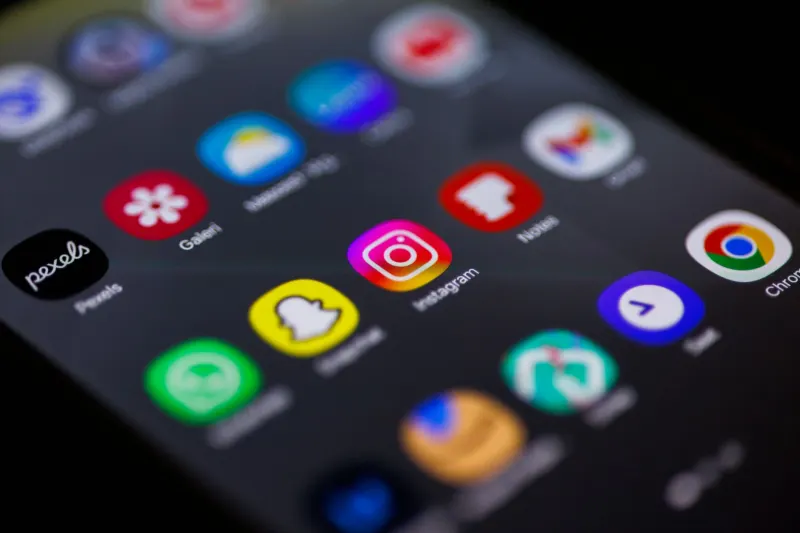
Navigating modern Android software often requires breaking old habits, particularly when manufacturers streamline interface layouts. Google's operating system handles application management through a dedicated window known as the app drawer, separating software from the home screen layout to prevent icon clutter. Unlike Apple's iOS, which puts all downloaded applications directly onto the home screen by default, Android tucks them away. While older Android versions relied on a dedicated home screen button to open this drawer, modern iterations favor a simple upward swipe gesture. Samsung followed this industry shift by omitting the visible shortcut from its One UI skin by default in recent software updates.
Despite this design change, many users continue to prefer the physical button over gesture controls, either out of habit, a lack of awareness regarding the new swipe motion, or simply because they do not want to adapt. Recognizing that longtime customers rely on legacy workflows, Samsung built a simple workaround directly into the operating system settings. Restoring the shortcut requires only a few taps, though users must weigh the convenience of having the button against the loss of valuable space in their favorite apps dock at the bottom of the screen.
Key takeaways
- Samsung removed the default all apps button from recent One UI versions in favor of a swipe-up gesture.
- Users can easily restore the classic shortcut through the home screen contextual settings menu.
- Enabling the button places it on the right side of the favorite apps dock at the bottom of the screen.
- The shortcut occupies space that could otherwise be used for an extra application icon in the dock.
How to bring back the missing apps shortcut
Finding the toggle to recover the legacy button involves navigating the device's contextual home screen settings. Users must first find an empty space on their Samsung Galaxy home screen and perform a long-press or a pinch gesture, mimicking the motion used to zoom out on a photograph. Either of these inputs triggers a contextual menu offering several customization choices. Tapping the gear icon labeled Settings in the bottom right corner opens the configuration panel. Scrolling down reveals the specific toggle labeled Show Apps screen button on Home screen. Flipping this switch and returning to the main display places the familiar button on the right side of the favorite apps dock.
Restoring the dedicated button provides a straightforward alternative for anyone who dislikes swiping up to view their complete software library. However, placing the icon in the favorites dock uses up valuable interface estate. Because the shortcut occupies a slot normally reserved for an application icon, users must decide if abandoning the swipe gesture justifies losing room for an extra app in their primary dock. The button is ultimately only worth turning back on if you really prefer it over the modern swiping motion.
Samsung and legacy navigation options
Samsung maintains a reputation for preserving legacy features that long-term customers appreciate, offering toggles for older input methods where competitors have moved on. Alongside the optional app drawer button, the Korean hardware giant remains the last major manufacturer to utilize Android 3.0 Honeycomb style three-button on-screen navigation by default, even though stock Android introduced gesture-based navigation with Android 9.0 Pie back in 2018. Users who prefer gesture controls over traditional buttons can still switch between the two inside the system settings menu.



Comments