
Apple helped popularize the USB format by ditching legacy connectors on the original iconic iMac, creating an industry-wide standard that persists to this day. Modern USB Mac accessories typically function smoothly, but macOS occasionally fails to detect them, creating a frustrating roadblock for users. Fortunately, most of these detection failures trace back to identifiable software settings or straightforward hardware problems that you can resolve in just a few minutes.
Key takeaways
- macOS requires explicit user permission for accessories to connect in order to prevent malware injection.
- Power delivery issues can prevent USB devices from working properly or necessitate an external power cable.
- Checking the System Information menu helps verify whether your Mac physically detects the connected hardware.
- Routine maintenance like cleaning out port lint or updating macOS software can resolve stubborn connection bugs.
Resolving software permissions and system recognition
By default, macOS prompts you to give permission for accessories to connect as a security measure against malware. If you accidentally reject this prompt, legitimate hardware will still charge but will not transmit data. You can usually trigger the permission prompt again by simply unplugging the accessory and plugging it back into the MacBook. To manage this permanently, navigate to the Apple menu, select System Settings, open Privacy and Security, and scroll down to the Accessories section. Here, you can adjust settings to ask for new accessories, automatically allow them when unlocked, or always allow them.
If permission settings are not the culprit, verify whether your Mac even registers the device. Hold down the Option key, click the Apple menu, and select System Information to inspect the Hardware category. If the accessory appears in this list, the issue likely requires checking the manufacturer's online support documentation. If the device remains entirely invisible or triggers repeated error messages, the underlying cause is frequently related to power supply limits.
Tackling power limits and physical hardware obstacles
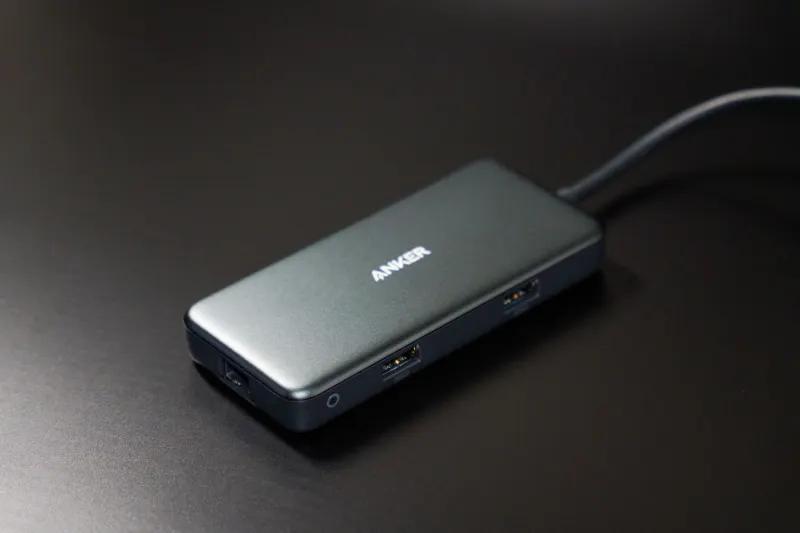
Certain accessories require more electrical power than a standard Mac USB port can deliver, which should trigger a specific warning message. If your device lacks a separate power cable, the port itself might be failing. Try connecting directly to your MacBook rather than using a hub or dock, or test alternative ports. Remember that hubs and docks frequently require their own dedicated power supplies, and device chains can easily disrupt power or data transmission across multiple hops.
Software environment variables also matter greatly. Ensure your operating system is fully up to date by navigating to Apple menu, System Settings, General, and Software Update to eliminate driver compatibility bugs. External storage cards and drives must use macOS-compatible file formats such as APFS, FAT, or ExFAT. Finally, inspect your physical cables and ports for accumulated lint, dust, grime, or bent pins. You can clear debris using a can of compressed air or a soft-tipped tool, while damaged cables showing exposed wires or browning must be replaced immediately to eliminate potential fire hazards.




Comments