
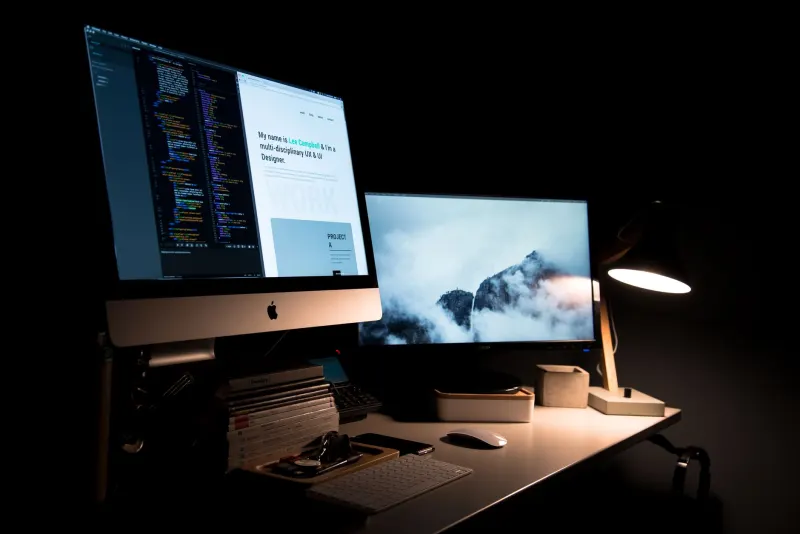
Adding a second monitor is one of the most effective ways to upgrade a daily computing workflow, whether the goal is gaming, working, or simply browsing the web. While mirroring a display duplicates the desktop for presentations, extending a display creates a wider desktop workspace that allows for more visible tabs, easier multitasking, and increased productivity. Upgrading to a dual-monitor setup does not necessarily require purchasing an expensive new display or hardware accessories. Users who happen to have a spare laptop lying around can make a few quick software or hardware adjustments to repurpose the idle device into a fully functioning secondary screen. Converting an old laptop is fairly straightforward, though it requires checking device compatibility, deciding between wired and wireless options, and tweaking system settings rather than simply plugging in an HDMI cable.
Key takeaways
- Windows 10 and 11 laptops can connect wirelessly as a second monitor using built-in Miracast tools and the Wireless Display app.
- MacBooks from 2018 or later can use Apple AirPlay over Wi-Fi to function as an extended or mirrored display.
- Cross-platform setups between Windows, Mac, and Linux require open-source software like Deskreen or a physical HDMI-to-USB capture card.
- Standard laptop HDMI ports are video-out only, meaning direct cable connections require an intermediary video capture card or dummy plug.
Configuring Windows and Apple operating systems
For users running Windows 10 or 11 on both the primary computer and the spare laptop, connecting the machines relies on built-in wireless casting tools powered by Miracast. On the spare laptop, users must navigate to Settings, System, and Projecting to this PC, then add the Wireless Display optional feature. Once installed, setting the option to Available everywhere and launching the Wireless Display app prepares the device to receive a feed. The primary computer then initiates the connection by pressing the Windows key combined with K, selecting the spare laptop from the available displays list, entering a PIN, and allowing mouse and keyboard input. Users can toggle between duplicating or extending the screen at any time using the Windows key and P.
Ecosystems within Apple hardware offer a similar wireless pathway through AirPlay, provided the MacBook in use dates from 2018 or later. The secondary MacBook must have the AirPlay Receiver turned on under System Settings, General, AirDrop and Continuity, with permissions restricted to the current user and both devices signed into the same Apple ID. On the primary Mac, users open System Settings, navigate to Displays, and select the secondary device from the dropdown menu to configure mirroring or extended display options. Both Windows Miracast and Apple AirPlay operate over Wi-Fi networks, which introduces a slight lag that makes them less ideal for intensive competitive gaming.
Cross-platform software and wired HDMI workarounds
Connecting two laptops running different operating systems, such as a Windows PC and a MacBook or any setup involving Linux, requires dedicated utility software like Deskreen. This free, open-source tool operates over a shared Wi-Fi network by generating a QR code and URL on the main device that the spare laptop opens via a web browser. Deskreen mirrors displays by default, meaning users who want an extended workspace must plug a cheap virtual display adaptor, also known as a dummy plug, into the primary computer's HDMI port.
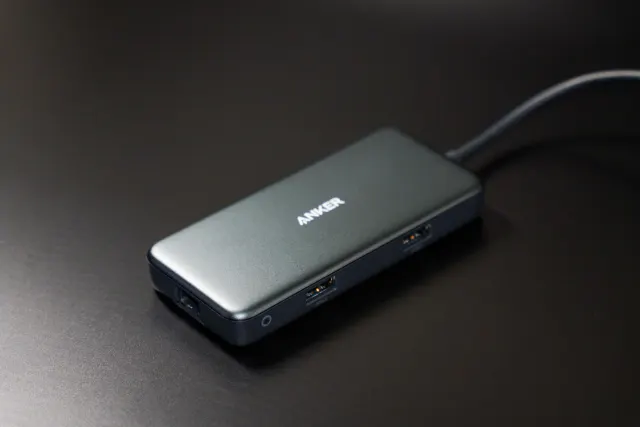
Because standard laptop HDMI ports are strictly video-out connections, linking two laptops with a standard cable will not directly extend or mirror a display. To establish a wired connection that minimizes lag, users can employ an HDMI-to-USB video capture card. By plugging the main device's HDMI cable into the capture card and routing the USB end into the spare laptop, the capture card behaves like a webcam. The video feed can then be viewed through the laptop's built-in camera application or free video software such as OBS Studio. This same physical setup allows users to connect gaming consoles like a PlayStation or Nintendo Switch directly to a laptop screen for portable gaming sessions.




Comments